
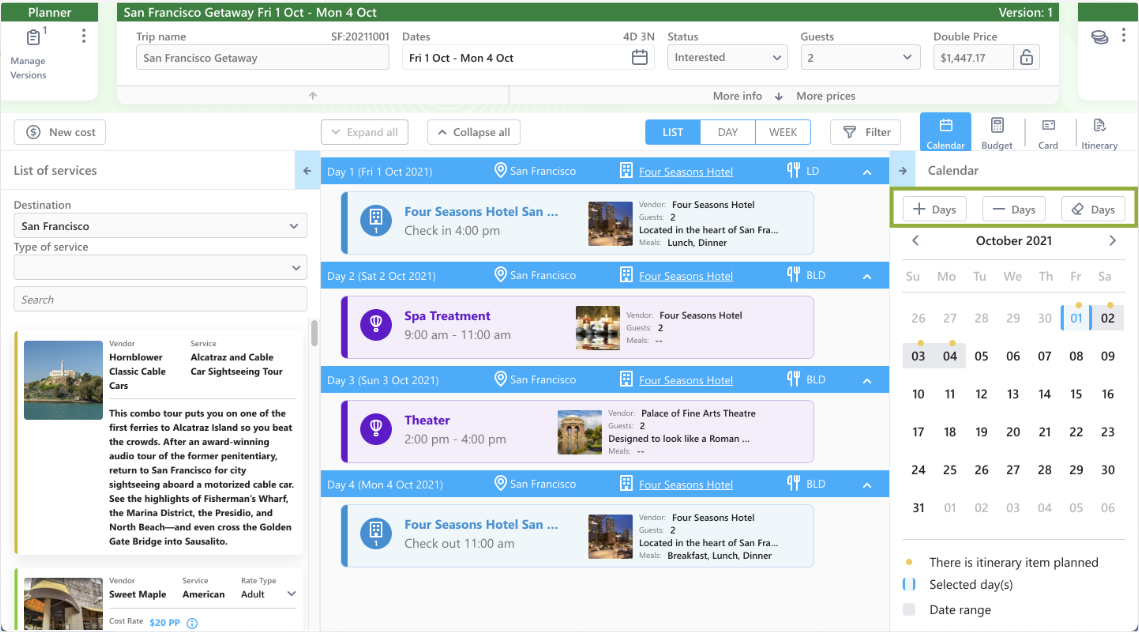
The Add/Remove/Clear Days function is once again available in Planner 2.0
 Adding Days
When clicking insert days, the user is asked to click on the day they want to insert days ahead of and can then choose a number of days in insert. All costs that start after the day where the insertion happens will have their start day increased. If the Cost is associated to a Vendor Service, and if Auto-Updates is enabled, cost amounts are updated to reflect the new start/end date.
For example, I have a Spa treatment on day 2 and I insert a day between day 1 and day 2, then the Spa treatment will now start on day 3 and the Theatre will now start on day 4. However, the Four Season hotel stay will still start on day 1 and end on day 4.

Remove Days
When clicking remove days, the user is asked to click on the day or range of days they want to remove. All costs that start on that range of days will be deleted and the costs that start after that range of days will have their start day decreased. If the Cost is associated to a Vendor Service, and if Auto-Updates is enabled, cost amounts are updated to reflect the new start/end date.
For example, I remove day 2 which deletes the Spa Treatment and moves the Theatre from day 3 to day 2. However, the Four Season hotel stay will still start on day 1 and end on day 4.

Clear Days
When clicking clear days, the user is asked to click on the day or range of days they want to clear. All costs that start on that range of days will be deleted but no costs will have their start date changed
For example, I clear day 2 which deletes the Spa Treatment but does not change the Theatre, thus leaving day 2 empty.
Multiple Versions
If the planner has multiple versions that share any costs, the user will be asked whether they want the cost changes to apply to just the open version or all versions.
Data that never changes
When clicking insert days, remove days, or clear days we do not adjust the duration of any costs nor do we adjust the start date or end date of the departure.